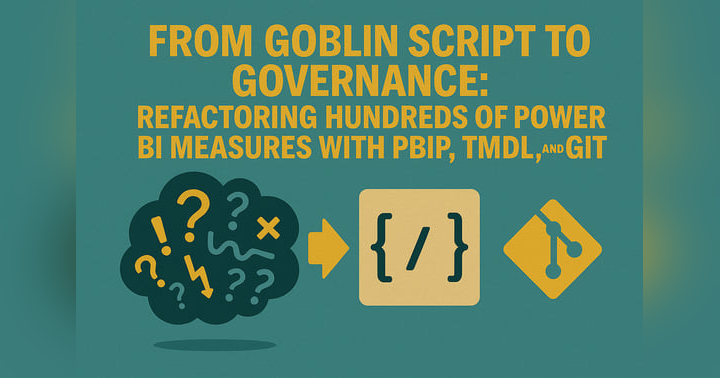


I Replaced 500 Measures Instantly—Here’s How
In this episode, we dive into how to replace measures in Power BI using DAX, helping you simplify your data model, improve report performance, and create more accurate, maintainable calculations. We explain what measures are, why they’re essential for interactive Power BI reports, and how they differ from calculated columns. You'll learn when and why replacing a measure makes sense—whether for performance gains, model cleanup, or updating outdated logic.
We walk through the step-by-step process of replacing measures in Power BI Desktop, including analyzing existing DAX, deciding between a new calculated column or a revised measure, and updating visuals to ensure accurate results. We also cover common troubleshooting issues like broken visuals, context-related errors, and performance bottlenecks—and how to avoid them.
The episode also explores DAX fundamentals, including essential functions like CALCULATE, VAR, SUM, and SWITCH, along with best practices for writing clean, efficient DAX expressions. We highlight how tools like Tabular Editor can streamline replacing measures, enable bulk edits, and help you use advanced features such as calculation groups to centralize logic and reduce repeated formulas.
Finally, we discuss validating your changes, refreshing datasets, and optimizing Power BI reports for speed and reliability. By mastering these techniques, you’ll ensure your Power BI models stay organized, performant, and ready for scalable analytics.


Replace Measures in Power BI: DAX Calculation in Power BI Desktop
In this comprehensive tutorial, we'll explore how to effectively replace measures in Power BI using DAX calculations within Power BI Desktop. Whether you are aiming to streamline your data model, refine existing calculations, or optimize your Power BI report, understanding how to replace measures is a crucial skill. We will cover the nuances of measures in Power BI, the importance of measures in Power BI reports, and practical steps to replace them with calculated columns or alternative DAX expressions.
Understanding Measures in Power BI
What are Measures in Power BI?
Measures in Power BI are calculations that are performed on your data. They are different from calculated columns, which are computed at the time the data is loaded into the Power BI model. A measure is a formula written in DAX that aggregates data from your data source, like summing up the sales amount from a sales table. In Power BI Desktop, you create measures to dynamically analyze your data and derive insights that aren't readily available from your columns. These measures are essential for data visualization and creating interactive Power BI reports.
Importance of Measures in Power BI Reports
Measures are vital in creating effective Power BI reports because they allow you to perform complex calculations on your data that adapt to user interactions, such as slicer selections. For instance, you can create a measure that calculates total sales, which will dynamically adjust based on the filters applied in the report. Without measures, your ability to perform ad-hoc analysis and create dynamic, insightful visualizations would be severely limited. By using measures in Power BI, you ensure your reports provide relevant and actionable information.
Key Differences Between Measures and Calculated Columns
The key difference between measures and calculated columns lies in how they are calculated and stored. Calculated columns are computed during data refresh and stored in the data model, increasing the file size. In contrast, measures are vital for dynamic, analytical reporting in Power BI, especially when leveraging the dax query view. calculated on the fly, based on the current context of the visual or query. This makes measures more efficient for aggregations and dynamic calculations. While calculated columns are useful for creating static, row-level values, measures are essential for dynamic, analytical reporting in Power BI. Understanding this difference is key to optimizing your Power BI model and report performance.
Replacing Measures in Power BI
Why Replace Measures?
There are several reasons why you might want to replace measures in Power BI. One common scenario is when you want to optimize your data model. Over time, a thorough understanding of the dax query view can significantly improve report efficiency. Power BI model can become cluttered with a lot of measures, some of which might be redundant or inefficient. By replacing measures with more streamlined DAX expressions or calculated columns, you can improve the performance and maintainability of your Power BI report. Another reason is to standardize calculations across your report. If you find that similar calculations are repeated in multiple measures, using calculation groups in Power BI or centralizing the calculation logic can ensure consistency and reduce the risk of errors. Sometimes, a measure’s underlying data source changes, necessitating a replacement for accuracy.
Steps to Replace Measures in Power BI Desktop
To replace measures in Power BI Desktop, start by identifying the selected measure you want to replace. Analyze its DAX formula and determine if a calculated column or a more efficient DAX expression can achieve the same result. If you opt for a calculated column, create a new column in the relevant table, writing the appropriate measure reference for the report is crucial for accurate data representation. DAX calculation. Next, update any visual that uses measures in Power BI to reference the new column instead of the old measure. If you're using a new measure, create it with the improved DAX expression, then replace the old one in your data visualization. Remember to thoroughly test your Power BI report to ensure that all calculations are accurate and that the measures in model and replaces are correctly configured for optimal performance. measures correctly reflect your desired outcome.
Troubleshooting Common Issues When Replacing Measures
When replacing measures, one common issue is broken measure in your Power BI report. This often occurs when you delete or rename a measure without updating all the visuals that use measures in Power BI. To avoid this, carefully review every measure and column that depends on the measure you are replacing and update them accordingly. Another issue is performance degradation if the new column or DAX expression is less efficient than the original measure’s formula. Use Power Query to optimize your data source transformations, and profile your DAX code to identify bottlenecks. Additionally, be mindful of the context in which the measures in Power BI table names are used; a clear structure aids in the understanding of the data model. DAX calculation that works well in one context might not perform as expected in another. It is also possible to loop through all columns and measures, cycle over all measures in the dataset and tostring in the measure names in the tabular editor. Manually, you can change measures like [salesamount] to [total sales], for instance, as well as the use of find and replace to update multiple entries at once.
DAX Calculation Basics
Introduction to DAX Expressions
DAX expressions are the backbone of Power BI, enabling you to perform complex calculations and derive meaningful insights from your data. A DAX formula consists of functions, operators, and values that work together to produce a result. Understanding how to write and optimize DAX expressions is crucial for effectively using measures in Power BI and creating dynamic visualizations. With DAX, you can calculate everything from simple sums to intricate statistical analyses, making it an indispensable tool for data analysis within Power BI Desktop, going beyond Power Query.
Common DAX Functions for Measure Replacement
When you replace measures, certain DAX functions become invaluable. The CALCULATE function, for example, allows you to modify the context of your calculation, which is essential for creating dynamic measures that respond to slicer selections. The VAR function helps you define variables within your DAX formula, making your code more readable and maintainable. Functions like SUM, AVERAGE, and COUNT are fundamental for aggregating data, while functions like IF and SWITCH enable you to create conditional calculations. By mastering these functions, you can efficiently replace existing measures with more robust and flexible DAX expressions in Power BI.
Best Practices for Writing DAX Calculations
Writing efficient DAX calculations involves several best practices. To ensure accuracy and performance in Power BI, consider the following:
- Strive to simplify your DAX expressions and avoid unnecessary complexity.
- Optimize your formula to minimize the amount of data that needs to be processed.
- Use variables (VAR) to break down large calculations into smaller, more manageable parts, such as dividing complex calculations into one measure.
- Utilize filter context effectively to ensure your calculations are performed on the correct subset of data.
- Test your measures thoroughly to verify their accuracy.
By following these practices, you can ensure that your DAX calculations are both accurate and performant in Power BI.
Utilizing Tabular Editor for Measures
What is Tabular Editor?
Tabular Editor is a third-party tool that enhances your Power BI Desktop development experience by providing a more advanced interface for managing your data model. It allows you to directly edit the tabular metadata of your Power BI file, offering features like advanced DAX editing, bulk updates to measure references can streamline the reporting process significantly. renaming, and the ability to create calculation groups in Power BI. With Tabular Editor, you can streamline your development workflow, improve the maintainability of your Power BI model, and unlock powerful capabilities that are not available within Power BI Desktop itself.
How to Use Tabular Editor to Replace Measures
To replace measures using Tabular Editor, first connect the tool to your Power BI Desktop file. Navigate to the selected measure you want to replace and modify its DAX formula directly in the Tabular Editor interface. Alternatively, you can create a new measure with your improved DAX expression and then replace the old one by updating all measure in your Power BI report to point to the new measure. Tabular Editor also allows you to perform bulk replace operations, making it easier to update multiple measures simultaneously. Always save your changes back to the Power BI file to apply them, ensuring all table names are correctly referenced throughout the model.
Advanced Features of Tabular Editor for DAX
Tabular Editor offers several advanced features that can significantly enhance your DAX development process. One powerful feature is the ability to create calculation groups in Power BI, which allows you to reuse calculation logic across multiple measures, reducing redundancy and improving maintainability. You can also use Tabular Editor to perform advanced DAX formatting, ensuring that your formula are readable and consistent. Additionally, Tabular Editor provides detailed metadata information about your data model, helping you to understand the relationships between tables and columns, making it easier to optimize your DAX calculations. Looping through all columns and measures, and cycle over all measures in the dataset by looking at the tostring in the measure names can also assist. You could manually updating the column name in the Power BI model enhances clarity and organization. replace measures like [salesamount] to [total sales], for instance, as well.
Implementing Calculation Groups in Power BI
Understanding Calculation Groups
Calculation groups in Power BI are a powerful feature that helps streamline and simplify complex DAX calculations. They allow you to define a set of calculations that can be applied across multiple measures, reducing redundancy and improving maintainability. A calculation group consists of calculation items, each containing a DAX expression. These items can then be applied to any measure in your Power BI report, enabling dynamic and flexible analysis. By using calculation groups in Power BI, you can centralize your calculation logic and ensure consistency across your visualizations.
Benefits of Using Calculation Groups
Using a calculation group offers several key benefits when working with Power BI. In particular, they provide the following advantages:
- They significantly reduce the complexity of your data model by consolidating common calculations into a single location, which makes it easier to maintain and update your measures in Power BI.
- They improve performance by reducing the number of individual measures that need to be evaluated.
- They enable advanced analytical scenarios, such as time intelligence calculations, that would be difficult or impossible to achieve with traditional measures.
- They promote consistency and accuracy by ensuring that all calculations are based on the same underlying logic.
How to Create Calculation Groups in Power BI Desktop
To create calculation groups in Power BI Desktop, you'll need to use Tabular Editor. Once connected to your Power BI Desktop file, right-click on the "Tables" node in Tabular Editor and select "Create" > "Calculation Group". Give your calculation group a descriptive name and then add calculation items for each calculation you want to include. For each item, write the appropriate DAX expression. Finally, apply the calculation group to your measures in Power BI by selecting the calculation item in your visual. This process allows you to dynamically switch between different calculations without having to create multiple measures, significantly enhancing your Power BI report's flexibility.
Refreshing and Validating Power BI Reports
Importance of Refreshing Datasets
Refreshing datasets in Power BI is a critical step in ensuring that your reports display the most up-to-date information. Data sources are often updated regularly, and without frequent refreshes, your reports may reflect outdated or inaccurate data. Scheduled refreshes in the Power BI service automate this process, ensuring that your data visualization always presents a current view. Regular refreshes not only maintain accuracy but also enhance the credibility of your Power BI report, enabling informed decision-making based on the latest available data. Failing to refresh can lead to incorrect insights and flawed strategies.
Validating Measures After Replacement
After you replace measures in Power BI, thorough validation is essential to confirm the accuracy and reliability of the new measure, particularly when using the fromstring with the tostring.. This involves testing the new column with different filters and scenarios to ensure it produces the expected results. Compare the output of the new measure with the original measure to verify consistency. Pay close attention to edge cases and potential data anomalies. Using Power Query to preview data and using the calculate function in DAX alongside tabular editor can further assist in this validation process. Careful validation minimizes the risk of errors and ensures that your Power BI report remains trustworthy.
Optimizing Performance of Power BI Reports
Optimizing the performance of Power BI reports ensures that they load quickly and respond efficiently to user interactions, especially when using measures in model and replaces. Start by addressing key elements, including:
- Streamlining your DAX expressions and avoiding complex calculations that can slow down performance.
- Minimizing the number of visuals on a single page and optimizing your data model by removing unnecessary columns and measures.
Regularly review and refine your Power Query transformations to ensure they are as efficient as possible. Consider using calculation groups in Power BI to reduce multiple measures and centralize logic. By addressing these areas, you can significantly improve the responsiveness and usability of your Power BI report, enhancing the user experience and enabling faster, more informed decision-making.
Ever stared at a Power BI model with 500 measures, all named like a toddler smashing a keyboard? That endless scroll of “what-does-this-even-mean” is a special kind of pain. If you want fewer helpdesk tickets about broken reports, hit subscribe now—future you will thank you when it’s cleanup time.
The good news? Power BI now has project- and text-first formats that let you treat models more like code. That means bulk edits, source-control-style safety nets, and actual readability. I’ll walk through a real cleanup: bulk renaming, color find-and-replace, and measure documentation in minutes.
And it all starts with seeing how bad those 500 messy names really are.
When 500 Measures Look Like Goblin Script
It feels less like data modeling and more like trying to raid a dungeon where every potion is labeled “Item1,” “Item2,” “Item3.” You know one of them heals, but odds are you’ll end up drinking poison. That’s exactly how scrolling through a field list packed with five hundred cryptic measures plays out—you’re navigating blind, wasting time just figuring out what’s safe to click.
Now swap yourself with a business analyst trying to build a report. They open the model expecting clarity but see line after line of nonsense labels: “M1,” “Total1,” “NewCalc2.” It’s not impossible to work with—just painfully slow. Every choice means drilling back, cross-referencing, or second-guessing what the calculation actually does. Seconds turn into minutes, minutes add up to days, and the simple act of finding the right measure becomes the real job.
With a handful of measures, sloppy names are irritating but tolerable. Scale that up, and the cracks widen fast. What used to be small friction balloons into a major drag on the entire team’s productivity. Confusion spreads, collaboration stalls, and duplicated effort sneaks in as people re-create calculations instead of trusting what’s already there. Poor naming doesn’t just clutter the field list—it reshapes how people work with the model.
It’s a bit like Active Directory where half your OUs are just called “test.” You can still hunt down users if you’re patient, but you’d never onboard a new hire into that mess. The same goes here. New analysts try to ramp up, hit the wall of cryptic names, and end up burning time deciphering the basics instead of delivering insights. Complexity rises, learning curves get steeper, and the whole workflow slows to a crawl.
You feel the tax most clearly in real-world reporting. Take something as simple as revenue. Instead of one clean measure, you’ve got “rev_calc1,” “revenueTest2,” and “TotalRev_Final.” Which one is the source of truth? Everyone pauses to double-check, then re-check again. That delay ripples outward—updates arrive late, dashboards need extra reviews, and trust in the reports slides downhill.
So people try to fix it the hard way: renaming by hand. But manual cleanup is the natural 1 of measure management. Each rename takes clicks, dialog boxes, and round-trips. It’s slow, boring, and guaranteed to fall behind before you’ve even finished. By the time you clean up twenty labels, two more requests land on your desk. It’s spoon-versus-dragon energy, and the dragon always wins.
The point isn’t that renaming is technically difficult—it’s that you’re locked into brittle tools that force one painful click at a time. What you really want is a spell that sweeps through the entire inventory in one pass: rename, refactor, document, done. That curiosity is the opening to a more scalable approach.
Because this isn’t just about sloppily named measures. It’s about the container itself. Right now, most models feel like sealed vaults—you tap around the outside but never see inside. And that’s why the next move matters. When we look at how Power BI stores its models, you’ll see just how much the container format shapes everything, from version control to bulk edits. Ever try to diff a PBIX in Git? That’s like comparing two JPEGs—you don’t see the meaning, just the noise.
Binary Black Box vs. Human-Readable PBIP
That’s where the real fork in the road shows up—binary PBIX files versus the newer project-style PBIP format. PBIX has always been the default, but it’s really just a closed container. Everything—reports, models, measures—is packed into one binary file that’s not designed for human eyes. You can work with it fine in Power BI Desktop, but the moment you want to peek under the hood or compare changes over time, the file isn’t built for that. PBIX files aren’t friendly to textual diffs, which makes them hard to manage with modern developer workflows. Quick note: if you’re documenting or teaching this, confirm the exact constraints in Microsoft’s official docs before stating it absolutely.
Now picture trying to adjust a set of measures spread across dozens of reports. With PBIX, you’re clicking dialogs, hunting through dropdowns, copy-pasting by hand. You don’t have a reliable way to scan across projects, automate changes, or track exactly what shifted. It works at small scale, but the overhead stacks up fast.
PBIP changes the layout completely. Instead of one sealed file, your work expands into a structured project folder. The visuals and the data model are each split into separate files, stored as text. The difference is night and day—now you can actually read, edit, and manage those pieces like source code. Microsoft has moved toward reusability before with templates (.PBIT) that let you standardize reports. PBIP takes the same idea further, but at the level of your whole project and model.
Once your files are text, you can bring in standard tools. Open a measure in VS Code. Wire the folder to Git. Suddenly, a change shows up as a clean side-by-side diff: the old formula on the left, the new one on the right. No binary sludge, no guesswork. That transparency is the keystone.
But it’s not only about visibility. You also gain revertability. A mistake no longer means “hope you made a manual backup.” It’s a matter of checking out a prior commit and moving on. And because the files are text, you gain automation. Need to apply formatting standards or swap a naming convention across hundreds of measures? Scripts can handle that in seconds.
Those three beats—visibility, revertability, automation—are the real payoff. They turn Power BI projects from isolated files into artifacts that play by the same rules as code, making your analytics far easier to manage at scale. It doesn’t turn every business user into a software engineer, but it does mean that anyone managing a large model suddenly has options beyond “click and pray.”
In practice, the shift to PBIP means ditching the black-box vibe and picking up a kit that’s readable, testable, and sustainable. Instead of stashing slightly different PBIX versions all over your desktop, you carry one source-controlled copy with a clean history. Instead of hoping you remember what changed last sprint, you can point to actual commits. And instead of being the bottleneck for every adjustment, you can spread responsibility across a team because the files themselves are transparent.
Think of PBIX as a locked chest where you only get to see the loot after hauling it back to one specific cave. PBIP is more like a library of scrolls—open, legible, and organized. You can read them, copy them, or even apply batch changes without feeling like you’re breaking the seal on sacred text.
The bottom line is this: PBIP finally gives you the clarity you’ve been missing. But clarity alone doesn’t fix the grunt work. Even with text-based projects, renaming 500 messy measures by hand is still tedious. That’s where the next tool enters, and it’s the one that actually makes those bulk edits feel like cheating.
Why TMDL Is Basically a Cheat Code
Now enter TMDL—short for Tabular Model Definition Language—a format that lays out the guts of your semantic model as plain text. Think of it less like cracking open a black box and more like spreading your entire character sheet on the table. Measures, columns, expressions, relationships—they’re all there in a standard syntax you can read and edit. No hidden menus, no endless scrolling. Just text you can parse, search, and modify.
It’s worth a quick caution here: the exact behavior depends on your file format and tooling. Microsoft documentation should always be your source of truth. But the verified shift is this—where PBIP gives you a project folder, a tabular definition file exposes that model in editable text. That’s a major difference. It turns model management into something any text editor, automation script, or version-control workflow can help with, instead of limiting you to clicks inside Power BI Desktop.
And that solves a big limitation. If you’ve ever tried renaming hundreds of fields using only the UI, you know the grind—each tiny rename chained to point-and-click loops. Even in PBIP without a model definition layer, the structure isn’t designed to make massive, organized replacements easy. TMDL fills that hole by laying the whole framework bare, so you're no longer stuck in click-by-click combat.
Here’s a straightforward example. Suppose your reports all use a specific shade of blue and it needs to change. Before, you’d open every formatting pane, scroll menus, and repeat—hours gone. In a text-based model file, those values exist as editable strings. You can global-replace “#3399FF” with “#0066CC” in seconds. That’s the kind of move that feels like rolling double damage on a tedious chore. Of course, confirm that your file format supports those edits and always keep a backup before you script a bulk change.
This is where the design shows. The format is structured and consistent, not ad hoc. By representing your model in neatly organized text, you can scan for patterns, see dependencies, and clean up inconsistent names without guesswork. Bulk refactoring suddenly looks like a safe, reversible operation instead of a nightmare. And you gain a standard pattern that both humans and tools can process with confidence.
Copilot in Power BI even builds on this by helping with documentation. Once your model is exposed in text, Copilot can add measure descriptions or generate summaries—another layer of automation that was nearly impossible when everything was sealed inside binary files. That means you’re not just speeding up renames, you’re also improving transparency for analysts who need to trust what they see.
Think about how you used to dread renaming conventions across an entire model. Want to change every prefix “Rev_” to “Sales_”? With text definitions, that’s a highlight, a find-and-replace, and a commit. No babysitting the interface, no waiting for spinning cursors, no fear of random breakage. And because it’s all under source control, the moment something looks off, you roll back to the previous version. That blend—fast changes with a safety net—is what makes the approach sustainable.
The comparison I like is Group Policy. Before, you were manually tweaking local settings one machine at a time. Now you’re writing a standard, applying it at scale, and trusting the system to enforce it consistently. The more scale you’re dealing with—five hundred measures, dozens of relationships—the more that structured, rule-based approach saves time and sanity.
The one caveat? You still need discipline. Bulk find-and-replace is powerful, but power comes with risk. Always branch, run a test commit, and validate that visuals still render as intended before you merge changes downstream. It’s a little extra step, but it’s what keeps you from turning a naming fix into a broken dashboard.
So when you roll back and look at the bigger picture, this isn’t just about renaming. It’s about shifting model management from guesswork and UI clicks into something organized, testable, and reversible. And that’s the real punchline: text turns messy chaos into a manageable system.
Which brings us to the next step. Imagine starting with a model where every measure looks like a keyboard smash and ending up, in one focused session, with clear and consistent names. That’s not abstraction—that’s the practical payoff you’re about to see in action.
From Keyboard Smash to Crystal Clarity
From Keyboard Smash to Crystal Clarity starts with this simple reality: messy names waste time, clear names save it. Going from “ABX001” to “Sales_Revenue_Monthly” isn’t about typing faster—it’s about using the right workflow. PBIP and TMDL formats turn what used to be nearly impossible in the UI into a few straightforward steps.
The flow is clean. Export a PBIX into a PBIP project. Open the TMDL or model definition file. Run your search-and-replace or script pass. Commit changes into Git, then validate your dashboards still look right. That’s the entire cycle—what once stretched into days of clicks shrinks to minutes.
If you try the old way inside Power BI Desktop, every rename is a detour through menus and dialog boxes. One or two? No problem. Five hundred? That’s a week-long slog. The difference shows instantly in a before-and-after list of names. On the left: “Calc1,” “Measure18,” “TestRev2.” On the right: “Sales_Total,” “Finance_Expense_Ratio,” “Ops_Turnover_Annual.” One side reads like goblin script, the other like a professional catalog. That shift alone raises trust, speeds onboarding, and makes the model usable at scale.
Of course, the uneasy moment hits when you commit a huge rename in one pass. Did you just torch the model? Here’s the safeguard: Git tracks every line, and it’s reversible. Microsoft even emphasizes this in their enterprise-scale guidance—governance and versioning aren’t add-ons, they’re expected features for managing Power BI artifacts in a team setting. If your naming script goes sideways, the rollback is already there. That kind of insurance is what makes bulk edits safe, not reckless.
Picture the commit log after a cleanup: thousands of line changes flipping from random fragments to clear business terms. It feels less like data entry and more like flipping on the lights in a cluttered room. Auditable, visible, and logical. The real gain isn’t only readability, it’s that everyone can now see exactly what changed—and trust it.
And naming with intent matters. Prefixes group measures by domain, suffixes show scale, and descriptive names reduce cognitive strain. It’s the gap between “Rev1” and “Sales_Revenue_Annual”—one makes you second-guess, the other tells you exactly what it is. Microsoft’s own best practices push for meaningful names because it reduces helpdesk calls and smooths report usability. What sounds like polish turns into real productivity.
Here’s a quick visual test. Scroll a “before” list: lines of “M1,” “NewCalc27,” “TestValue.” Then scroll the “after” view: “Finance_OperatingCost,” “Sales_ConversionRate,” “Ops_Headcount.” Instantly, any new analyst knows where to look and what it means. That clarity slashes onboarding time and builds confidence across the team.
The process is both efficient and safe. Efficiency is text edits that collapse hours of UI drudgery into one sweep. Safety is in version control: mistakes are simply commits you roll back. Together, they give you confidence to enforce standards at scale rather than dodging the problem until it grows bigger.
But renaming is just the entry point. Once your model sits in text, everything opens up: shared templates, consistent standards across projects, and collaboration without the chaos of one person holding the only copy. That’s where the real power builds—not just fixing names, but running your models like team assets instead of one-off files.
Quick checklist before we hit the demo: export, open, search, commit, validate dashboard visuals. That’s the practical loop. One pass through, and a wall of cryptic code turns into a navigable catalog of measures.
And if naming transforms that much, imagine what happens the moment multiple people start editing models together. That’s where the story shifts—because it’s not only about clarity for one person, it’s about resilience for the whole team.
Collaboration Level-Up with Source Control
Collaboration level-ups start when you stop trading files like cursed relics and move into source control. Before PBIP, teamwork on a PBIX often meant juggling endless “final.pbix” versions across email or shared drives. Two people editing at once was a gamble—one tweak to visuals could silently wipe out someone else’s measure changes. It wasn’t collaboration, it was file roulette.
PBIP and TMDL flipped the setup. Instead of one sealed binary, everything breaks into text-based project files that sit neatly in a folder. Reports, models, measures—all flattened into a structure you can drop into a repo. If you store those text files in Git, collaboration stops being fragile guesswork and starts following the same patterns that developers use daily. Branching, merging, and diffing become natural moves. No more blind edits, no more silent overwrites.
Think about it this way: without source control, even a simple renaming pass can be risky. Rename fields today and you might wipe out a colleague’s update from yesterday—work gone without warning. With Git, the playbook changes. Each branch works like an individual save slot. You grab one, make your changes in isolation, and don’t stomp on anyone else’s progress. When you merge, Git shows exactly which lines moved. It’s not conflict-free, but at least you can see the overlap instead of blindly overwriting someone else’s work.
Picture a team dividing up tasks. One person refactors old revenue measures. Another adds calculated ratios for a department roll-up. A third fixes model relationships. In PBIX days, three sets of edits in one file was a recipe for overwrites. In PBIP with TMDL, each task lives in a branch. Once complete, all three merge clean into the main project. You can even review each line before approving. What used to be hidden inside binary mush is now visible, structured, and safe to coordinate.
And it’s not just workflow—it’s governance. Every commit has context: who made the change, when it happened, and why. If “Rev_Test2” turned into “Sales_Profit,” there’s no mystery. The log records the event, and that log doubles as your audit trail. Enterprises already expect this kind of visibility in Power BI, since the platform emphasizes secure sharing, governed datasets, and cross-service integration. Doing model management with text and source control isn’t just convenient—it aligns with the governance standards most organizations already follow.
Rolling back mistakes also becomes painless. If a naming change breaks a dashboard, you revert the commit and reopen the model in seconds. The only rule: test in a branch first. That single safety net encourages experimentation because even a failed idea isn’t fatal—you can always roll back and try again.
Source control also supports scale. When more developers join, you don’t multiply chaos—you multiply speed. Branches handle parallel development, merges bring it together, and the log keeps the story straight. This structure is what turns ad hoc edits into a maintainable practice. Models stop being brittle artifacts and become living projects that evolve while staying under control.
The big picture is simple: PBIP and TMDL make your project readable, and Git makes it collaborative. Instead of local copies drifting apart, you get one shared repo with reproducible history. Instead of invisible overwrites, you gain line-level clarity. And instead of fragile files, you get auditable assets that satisfy both your engineers and your compliance team.
You end up with reproducible, auditable model changes instead of fragile accidental overwrites.
Conclusion
The messy sprawl of unreadable measures is the real problem. PBIP and TMDL give you a practical way out by exposing your models as text, which means faster edits, safer versioning, and workflows your whole team can trust when you use source control.
Here’s your next step: try exporting one PBIX to a project format, or spin up a .PBIT template and document a single measure with Copilot. That small test shows the difference.
And if this helped you roll a natural 20 on cleanup, hit subscribe like it’s a critical save against chaos GPOs—ring the bell for more Power BI tactics.
This is a public episode. If you'd like to discuss this with other subscribers or get access to bonus episodes, visit m365.show/subscribe