
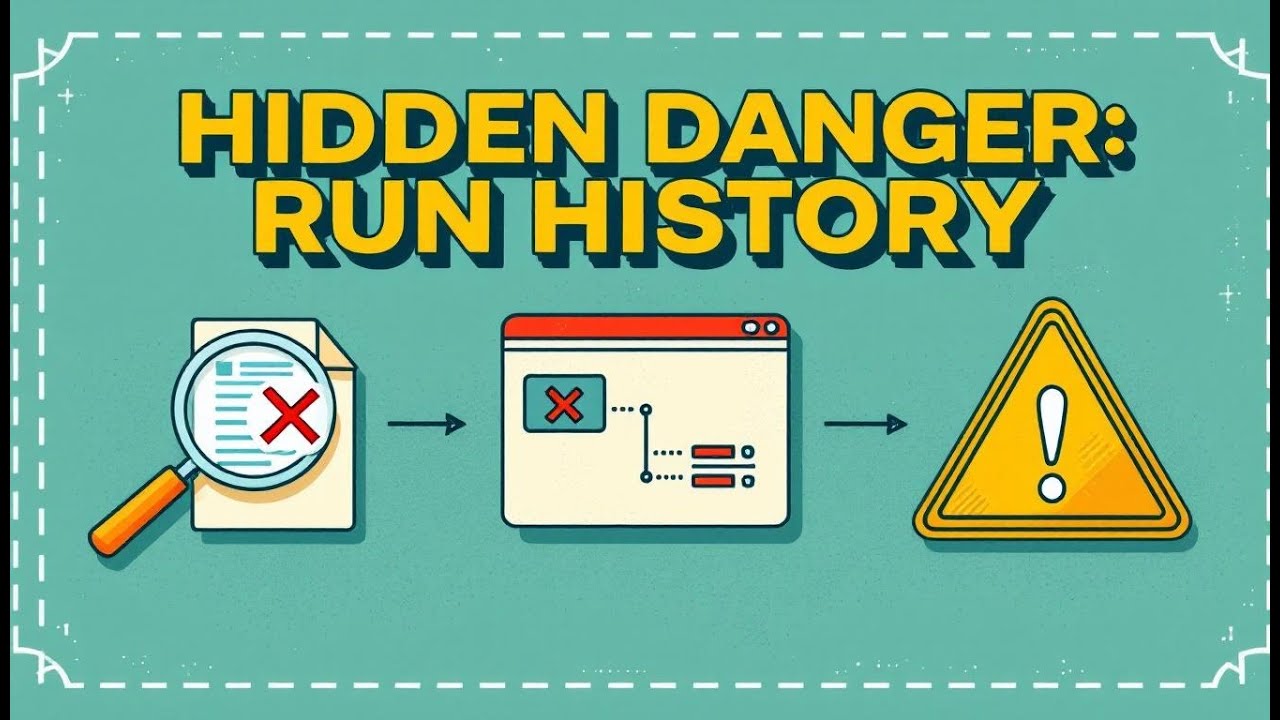


Your Power Automate Approval Flow Isn’t Audit-Proof
Automating approval workflows has become essential for organizations that want to move faster, eliminate manual bottlenecks, and keep their processes compliant. In this episode, we break down how Microsoft Power Automate and SharePoint work together to create powerful, reliable approval workflows that handle requests instantly and keep every step fully tracked. You’ll learn how approval automation works, why it matters, and how to build an approval flow that triggers the moment a SharePoint item is created, sends a structured approval request to the right people, waits for a response, and updates your data automatically. We explore how to configure approvers, customize approval logic, manage approval status in SharePoint, and use advanced features like sequential and parallel approvals. By the end, you’ll understand how Power Automate and SharePoint can streamline your entire approval process, reduce errors, improve visibility, and deliver a smooth, modern approval experience that transforms productivity.


Automate Approval Workflow with Power Automate and SharePoint
In today's fast-paced digital landscape, automating business processes is crucial for efficiency and productivity. One area where automation can significantly impact operations is in approval workflows. By integrating Microsoft Power Automate with SharePoint, organizations can create an approval request, reduce bottlenecks, and ensure compliance. This article delves into how to automate approval workflows using Power Automate and SharePoint, providing a step-by-step guide to creating efficient and effective approval flows.
Understanding Approval Workflows
What is an Approval Workflow?
An approval workflow is a structured, automated process designed to manage and track approval requests. It typically involves submitting a request, routing it to designated approvers, and recording the approval outcome. The workflow ensures that each step adheres to predefined rules and guidelines, facilitating consistency and auditability in the approval process. Using Power Automate, these workflows can be easily created and customized to meet specific business needs.
Importance of Automating Approval Processes
Automating approval processes is vital for several reasons, including:
- Significantly reducing manual effort and the potential for human error.
- Accelerating the approval process, minimizing delays, and improving overall efficiency.
Furthermore, automation ensures that all approval requests follow a consistent path, enhancing compliance and providing a clear audit trail. By leveraging Microsoft Power Automate, organizations can create an approval request, ensuring smoother operations and better resource allocation.
Key Components of Approval Workflows
Key components of an approval workflow include the initial submission, routing to approvers, and the final decision. Essential elements involve defining the type of approval (e.g., sequential approval or approval by multiple approvers), setting conditions for approval, and configuring notifications to keep all parties informed. Power Automate enables users to create an approval flow that incorporates these components, ensuring each approval request is managed efficiently and transparently using SharePoint and other Microsoft 365 services.
Getting Started with Power Automate
Overview of Microsoft Power Automate
Microsoft Power Automate is a powerful tool within the Power Platform that allows users to automate repetitive tasks and processes without writing code. It provides a user-friendly interface for creating automated flows that connect to various services and applications, including SharePoint. Power Automate’s role-based access ensures that only authorized users can create and modify approval workflows, enhancing security and governance. By using Microsoft Power Automate, organizations can significantly improve their operational efficiency.
Creating an Automated Cloud Flow
Creating an automated cloud flow in Power Automate involves defining a trigger and subsequent actions. After selecting the appropriate trigger, you can add a variety of actions. Common actions include:
- "Create an approval"
- "Wait for an approval"
Configure the approval action with details such as the approvers and approval type. These flows using Power Automate ensure that every approval request in SharePoint is handled automatically, reducing manual intervention and speeding up the approval process.
Flow Triggers and Their Importance
Flow triggers are the starting points of automated workflows in Power Automate. They initiate the flow based on specific events, such as the creation of an item in a SharePoint list or a change in approval status, which can trigger a create approval request. Choosing the correct flow triggers is crucial for ensuring the approval workflow starts at the right time. Triggers like “When an item is created” or “When a file is modified” in SharePoint can automate the entire approval process, ensuring timely and efficient handling of approval requests in Power Automate.
Creating an Approval Flow in Power Automate
Steps to Create an Approval Flow
Here's how you can create an approval flow in Power Automate. It generally involves a few key steps:
- First, select a trigger. For example, you might use "When an item is created" in a SharePoint list.
- Next, add the "Create an approval" action, specifying the approval type and approvers.
- Then, incorporate a "Wait for an approval" action to pause the workflow until a decision is made.
Finally, add actions to handle the approval response, such as updating the SharePoint item or sending notifications. Using Power Automate, these steps ensure a streamlined approval process.
Configuring Approval Requests
Configuring approval requests involves defining the details of what needs approval, such as the item description and associated files. Within the "Create an approval" action, include relevant information to help the approvers make informed decisions. Specify the type of approval required, whether it's a simple yes/no or a custom response. Using Microsoft Power Automate, customize the approval request to provide clarity and context for each approval workflow, ensuring efficient approvals in Power Automate.
Setting Up Approvers and Approval Actions
Setting up approvers and approval actions is crucial for routing approval requests effectively. You can specify individual approvers or use dynamic assignments based on roles or groups within Microsoft Teams. For approval actions, configure what happens after a decision is made, such as updating a SharePoint list or sending email notifications. Consider adding conditions to handle different wait for approval scenarios. approval outcomes. The setup of approvers and approval actions in Power Automate will make sure that each approval is handled correctly, contributing to efficient business processes.
Integrating SharePoint with Approval Workflows
Using SharePoint Lists for Approval Requests
Using SharePoint lists for approval requests provides a centralized location to manage and track approvals. Create a SharePoint list with columns that capture essential details, such as the requestor, item description, and status for document approval tracking. Then, connect the list to your Power Automate approval flow using the "When an item is created" trigger. Using Power Automate together with the power automate mobile app for on-the-go access. SharePoint makes it very easy to track the stage of approval and the current approval status.
Benefits of Integration with SharePoint
The benefits of integrating SharePoint with approval workflows are numerous. SharePoint acts as a central repository for all approval-related data, ensuring consistency and accessibility. Integration streamlines the approval process, reducing manual effort, and improving efficiency. Additionally, SharePoint provides robust version control and audit capabilities, enhancing compliance and accountability. Using Microsoft tools like Power Automate and SharePoint simplifies the creation of an efficient approval workflow in Power Automate.
Managing Approval Requests in SharePoint
Managing approval requests in SharePoint involves tracking the status of each request, viewing approval responses, and generating reports. SharePoint's list views and filters allow users to quickly identify pending approvals or completed requests. Additionally, you can create custom dashboards to visualize approval metrics and identify bottlenecks. By effectively managing approval requests in SharePoint, organizations can maintain transparency and ensure timely approvals using Power Automate, enhancing the overall approval process.
Advanced Features of Approval Workflows
Sequential Approval vs. Parallel Approval
When configuring an approval workflow, understanding the difference between sequential approval and parallel approval is essential. Sequential approval requires approvers to review and approve in a specific order, ensuring each approval request passes through a predefined hierarchy. In contrast, parallel approval allows multiple approvers to review simultaneously, speeding up the power automate flow. approval process. Using Power Automate, you can easily configure either the power automate mobile app or the desktop version. approval type to best fit your business processes for efficient approvals in Power Automate.
Handling Multiple Approvers
Handling multiple approvers effectively is critical for complex approval workflows. Using Power Automate, you can designate several approvers to review a single approval request, ensuring comprehensive oversight. Configure the approval process to require unanimous approval or a majority vote, depending on your requirements. Additionally, set up notifications to keep all approvers informed of the document approval status. approval status and any pending actions. Proper management of multiple approvers enhances the efficiency and reliability of your approval workflow.
Customizing the Approval Process
Customizing the approval process allows you to tailor approval workflows to meet specific business process needs. Using Power Automate, you can add conditions, branches, and custom actions to handle unique scenarios. For instance, you might route approval requests to different approvers based on the request amount or item category. Customizing the approval process with Power Automate increases its flexibility and effectiveness, ensuring that each approval workflow in Power Automate aligns perfectly with your organizational requirements, which overall automate approval.
Best Practices for Approval Workflows
Optimizing Your Approval Flow
To optimize your approval flow, start by mapping out the entire approval workflow, identifying any bottlenecks or inefficiencies. Simplify the approval process by reducing the number of steps and approvers where possible. Ensure that approvers have all the necessary information to make informed decisions and provide clear instructions for each step. Regularly review and adjust your approval workflows based on feedback and performance data to maintain peak efficiency, using Microsoft Power Automate.
Common Challenges and Solutions
Common challenges in approval workflows include delayed approvals, lack of clarity in approval requests, and inconsistent approval outcomes. To address these issues, establish clear service-level agreements (SLAs) for approval timelines. Improve communication by providing detailed descriptions and context in approval requests. Implement standardized create approval processes to enhance workflow efficiency. approval actions and criteria to ensure consistency. Using Power Automate, monitor approval metrics and identify areas for improvement to streamline the approval process and automate approvals.
Monitoring and Evaluating Approval Workflows
Monitoring and evaluating approval workflows is crucial for identifying areas for improvement and ensuring continued efficiency. Use Power Automate's built-in analytics to track key metrics such as wait for approval. approval cycle time, approval outcomes, and user satisfaction. Regularly review approval data to identify trends and patterns, and make adjustments to your approval workflows as needed, using the power automate flow for better tracking. By continuously monitoring and evaluating your approval workflows, you can optimize performance and ensure they align with your document approval requirements. business process needs, using Microsoft Power Automate.
Summary
Running Your Power Automate Approval Flow is more than just pressing “Start and wait for an approval” — it’s about building a workflow that’s resilient, auditable, and flexible. In this episode, I dig into how to design approval flows that don’t break when someone is out, need rework paths, or you want a clean audit trail.
We’ll cover common pitfalls (like missing approval histories, silent failures, or rigid sequential designs), advanced patterns (feedback loops, dynamic approval cycles, cancellation), and how to break monolithic flows into modular building blocks. If you want your approval flows to feel like software (not spaghetti), this episode is your roadmap.
What You’ll Learn
* Why the standard “Start and wait for an approval” is only the beginning
* How to build dynamic approval cycles with Do until + Switch so you can loop, rework, or escalate Medium
* How to capture and log approval history (approver, outcomes, timestamps) into SharePoint or metadata for auditing Matthew Devaney
* How to modularize your flow (child/sub-flows, hub/orchestration) to avoid monolithic, unmanageable logic DEV Community
* Strategies for handling “out of office”, cancellation, parallel vs sequential approval steps, and fallback logic
* How to design for maintainability: clear paths, consistent patterns, and avoiding hidden spaghetti logic
Full Transcript
Here’s the catch Microsoft doesn’t highlight: Power Automate’s run history is time‑limited by default. Retention depends on your plan and license, and it’s not forever. Once it rolls off, it’s gone—like it never ran. Great for Microsoft’s servers. Terrible for your audit trail.
Designing without logging is like deleting your CCTV before the cops arrive. You might think you’re fine until someone actually needs the footage.
Today we’ll show you how to log approvals permanently, restart flows from a stage, use dynamic approvers, and build sane escalations and reminders. Subscribe to the newsletter at m365 dot show if you want blunt fixes, not marketing decks.
Because here’s the question you need to face—think your workflow trail is permanent? Spoiler: it disappears faster than free donuts in the break room.
Why Your Flow History Vanishes
So let’s get into why your flow history quietly disappears in the first place. You hit save on a flow, you check the run history tab, and you think, “Perfect. There’s my record. Problem solved.” Except that little log isn’t built to last. It’s more like a Post-it note on the office fridge—looks useful for a while, but it eventually drops into the recycling bin.
Here’s the truth: Power Automate isn’t giving you a permanent archive. It’s giving you temporary storage designed with Microsoft’s servers in mind—not your compliance officer. How long your runs stay visible varies by plan and license. If you want the specifics, check your tenant settings or Microsoft’s own documentation. I’ll link the official retention guidance in the notes—verify your setup, because what you see depends entirely on your license.
Most IT teams assume “cloud equals forever.” Microsoft assumes “forever equals a storage nightmare.” So they quietly clean house. That’s the built-in expectation: logs expire, data rolls off, and your history evaporates. They’re doing housekeeping. You’re the one left without receipts when auditors come calling.
Let’s bring it into real life. Imagine HR asks for proof of a promotion approval from last year. Fourteen months ago, your director clicked Approve, everyone celebrated, and the process moved on. Fast forward, compliance wants records. You open Power Automate, dig into runs... and there’s nothing left. That tidy approval trail you trusted has already been vacuumed away.
That’s not Microsoft failing to tell you. It’s right there in the docs—you just don’t see it unless you squint through the licensing fine print. They’re clear they’re not your compliance archive. That’s your job. And if you walk into an audit with holes in your data, the meeting isn’t going to be pleasant.
Now picture this: it’s like Netflix wiping your watch history every Monday. One week you know exactly where you paused mid-season. Next week? Gone. The system pretends you never binged a single show. That’s how absurd it looks when an auditor asks for approval records and your run history tab is empty.
The kicker is the consequences. Missing records isn’t just a mild inconvenience. Failing to show documentation can trigger compliance reviews and consequences that vary by regulation—and if you’re in a regulated industry, that can get expensive very quickly. And even if regulators aren’t involved, leadership will notice. You were trusted to automate approvals. If you can’t prove past approvals existed, congratulations—you’re now the weak link in the chain.
And no, screenshots don’t save you. Screenshots are like photos of your dinner—you can show something happened, but you can’t prove it wasn’t staged. Auditors want structured data: dates, times, names, decisions. All the detail that screenshots can’t provide. And that doesn’t live in the temporary run history.
Here’s a quick reality check you can do right now. Pause this video, go into Power Automate, click “My flows,” open run history on one of your flows, and look for the oldest available run. That’s your retention window. If it’s missing approvals you thought were permanent, you’ve already felt the problem firsthand. Want to know the one-click way to confirm exactly what your tenant holds? Stick around—I’ll show you in the checklist.
So where does this leave you? Simple: if you don’t build logging into your workflows, you don’t have approval history at all. Pretending defaults are enough is like trusting a teenager when they say they cleaned their room—by Monday the mess will resurface, and nothing important will have survived.
The key takeaway: Power Automate run history is a debugging aid, not a record keeper. It’s disposable by design, not permanent or audit-ready. If you want usable records, you have to create your own structured logs outside that temporary buffer.
And this isn’t just about saving history. Weak logging means fragile workflows, and fragile workflows collapse the first time you push them beyond the basics. Which leads to the next problem—designing approval flows that don’t fall apart under real-world pressure.
Designing Approval Flows That Don’t Collapse
The harsh truth is most approval flows implode because they’re built too thin. A single-stage design feels quick and clever, but it’s fragile. It looks fine on paper until people actually try to run real processes through it.
One person signs off? Easy. But the second another department asks for an alternate rule or an extra checkpoint, that quick win starts cracking. You’re stuck patching half-baked fixes on top of hard-coded steps.
That’s why admins end up in trouble three months later. You built the demo, showed your manager, looked like a hero. Then Procurement comes knocking with five-stage rules, HR wants a single approver, and Legal demands two plus compliance. Suddenly, your flow is Frankenstein’s monster, stitched together with duct tape and conditions nobody understands. Sure, it runs—but it’s just waiting to crash.
The worst habit? Hard-coding emails. That’s the death sentence of reusability. You wire the flow directly to Bob in Finance. Bob leaves. Now every approval for that process either fails or vanishes into a black hole. Critical approvals die in silence—all because one person’s address was baked into the logic. Store role membership, not emails. Use object IDs when possible so changes don’t break flows.
Here’s the better play. Instead of hard-coding addresses, fetch approvers dynamically. Use a role lookup—an Azure AD group, a SharePoint list, or Dataverse (if you use it). Each option gives you a central place to swap out owners when people leave. That’s sustainable. For example, you define “Finance Approvers” in AD. If Bob quits, remove him from the group, add his replacement, and the flow never skips a beat.
Keep it blunt: if Joe’s email is hard-coded and Joe quits, approvals either fail or disappear into nowhere. Avoid that nonsense. Always map a role to a person record, never tie business logic to a single mailbox.
The rigidity problem doesn’t stop with emails. I’ve seen admins chain one approval after another, custom to each department, no dynamic routing, no fallback logic, no state tracking. Looks great in a demo because everyone’s at their desks, clicking on time. But the first vacation, sick day, or missed reminder? Dead in the water.
What your flows really need is state awareness. That means a persistent stage field—some durable store that records what step the request is on. Design your workflow to read and write that stage value. Then if the flow chokes, you can restart it at the right stage without guessing or resending the entire process. It’s a reset button baked into the design, and it saves you from firefighting messy re-runs.
Now, let’s get practical. Finance might demand dual approvals for purchases. HR may only need one quick signoff. IT might worry people will stall, so they demand escalation logic. If you try cramming all three departments into one hard-coded flow, you either water down their rules or spam the wrong people. Modular, stage-driven flows solve that by flexing to each need without creating chaos.
Pro tip: always pilot your multi-stage design with one department first. Don’t roll it out tenant-wide on day one. You’ll catch the edge cases quicker, and you won’t inherit a mountain of technical debt before you know the weak spots.
The bottom line is simple. Fragile approval flows collapse because they assume nothing changes—same staff, same process, same perfect conditions. But in reality, people leave, rules shift, and exceptions pop up constantly. Make your flows modular, stage-aware, and role-driven. Store roles instead of emails. Track state so you can recover gracefully. Every shortcut you skip now turns into rework later.
But even with clean design, there’s another killer. Approvals stall when people sit on them, and admins try to fix it with wave after wave of reminder emails. That’s how you create a whole new problem waiting to explode.
Escalations and Reminders Without the Spam Storm
Nothing says “bad flow design” louder than a pile of 45 unread reminder emails at the top of someone’s inbox on Monday morning. If your automation looks less like a workflow and more like a spam cannon, you didn’t build a process—you built workplace harassment with a subject line. And let’s be clear: reminders aren’t the enemy. Escalations aren’t the problem. The issue is when “nudging” gets confused with “relentless inbox hammering.” What you actually want is persistence, not digital water torture.
Reminders exist because people get distracted, go on leave, or assume someone else will handle a task. Escalations exist because no one wants approvals left in limbo until three weeks later when someone finally complains. So yes, you need them. But you need them smart. Nobody is thrilled to join a call just to say, “Hey, thanks for the 19th reminder today—I finally clicked approve.” That’s how you push users from mild annoyance into open revolt.
Here’s the trap most admins fall into: they believe more reminders equal faster results. One works? Then five must be better. That logic is fine if you’re pushing pizza coupons, not handling expense signoffs. A good reminder is context-driven and timely. “Reminder: your team’s purchase request is waiting for sign-off, due Friday.” That lands. On the other hand, a flood of identical “You have a task” subject lines arriving at 9 a.m.? That trains users to hit Delete faster than Outlook rules can sort junk. Reminder design rules are simple: be specific, be timed, be conditional.
Let me give an example I’ve seen: a CFO had five expense reports waiting. Someone thought “every two hours until it’s done” was a brilliant reminder cadence. By the end of the day, she had 30 emails. None of the approvals were finished, IT had three angry Slack pings, a Teams invite titled “Fix this mess,” and a finance team that now associates automation with spam. The flow didn’t move faster. It just created more noise and bad blood. Tell me in the comments—what’s the most ridiculous reminder frequency your tenant has ever produced? Someone’s probably topped 30.
So what’s the fix? Power Automate actually hands you the building blocks, but you’ve got to use them like an adult. Use Delay actions and conditional checks so you only send a reminder if the task is still pending. That simple safeguard alone stops most spam storms. Then add escalation rules with some structure: first, a single reminder; if ignored after a defined period, escalate to the manager; if still ignored, route it to a shared mailbox or role queue. That’s a clean chain of accountability without drowning one person’s inbox. Pick your time windows sensibly in testing—don’t just guess, then unleash chaos.
Think of it this way. When one solid nudge doesn’t work, don’t crank up the volume—change the channel. Escalate to someone else with authority to move it forward. That approach keeps the process flowing, shows accountability, and spares users from inbox fatigue. Flooding reminders works like blaring the same car alarm all day. The first time, people check. After the tenth, everyone ignores it, even if the car actually gets stolen. The noise kills the trust. One sharp, relevant reminder with a clear due date gets more respect than 50 pings ever will.
The sweet spot is to make reminders feel like calendar events, not sirens. One email the day before deadline? Useful. A Monday digest of pending approvals? Practical. An escalation that reassigns if ignored for a week? Effective. You’re building a nudge system, not running an all-hands fire drill.
And here’s the kicker—reminders and escalations only matter if you can prove they fired. During an audit, “we emailed them three times” doesn’t count. What counts is a record in your own logging that says: reminder sent, escalation triggered, outcome recorded. If you can’t show that data trail, all your clever reminders collapse into hearsay.
So yes, set up reminders to keep things moving. Build escalation paths so tasks don’t die in someone’s Outlook. But don’t forget the foundation: log every reminder, every escalation, into a durable system you control. Because when someone asks how your process really worked, screenshots and vague stories don’t save you. Only hard records do. And funny enough, the place most admins assume provides those records is about to let them down hard.
The Logging Lie Everyone Believes
Let’s tackle one of the most expensive myths in Power Automate—the logging lie everyone believes.
Everyone assumes the run history tab is their compliant record. It feels official, shows approvals in neat rows, and makes you think, “Perfect, we’re covered.” But that tab is not an archive. It’s a short-term diagnostic buffer—useful for debugging, not for long-term record keeping. Treating it like a permanent log is like treating sticky notes on a fridge as your company file system. Looks fine until the cleaning crew wipes it all away.
Admins fall into this trap constantly. They demo a flow, pull up history, and tell leadership, “See, we’ve got everything saved here.” What they don’t mention—or don’t realize—is that the records in that tab are timed to disappear. It’s built for troubleshooting, not compliance. Microsoft never marketed it as a forever vault; they designed it as a tool to help you fix broken runs. Trusting that buffer to hold legal evidence is about as smart as using your browser history as your accounting system.
Now picture this in real life: an auditor asks, “Who approved this budget in 2021?” You think, “Easy win.” You open Power Automate, click into run history… and nothing. Maybe you see a few weeks. Maybe a couple of months. Beyond that? Empty. The audit team doesn’t care that you can view last quarter’s data. They want receipts from years back. If all you’ve got is an empty page, the conversation ends badly. Don’t let a demo-level promise become your legal problem later.
I’ve seen it firsthand. HR needed to produce proof of an approval for a disciplinary action tied to a lawsuit. IT went to run history and found zero trace. The logs had already rolled off. The confidence they had a year earlier turned into an extremely awkward moment in front of lawyers. That is the exact cost of believing the run history lie.
So, what’s the grown-up fix? You need persistent logging outside that buffer. Dataverse works if you want relational storage and scale. SharePoint lists are cheap, quick, and easy to query. SQL gives you full control if your org already runs databases, though it comes with overhead. The tradeoffs are simple: SharePoint is easy but limited, Dataverse scales and handles relationships, SQL is powerful but requires actual database ops. Pick what matches your skills and what your environment can manage—but pick something. Because “the run history is our log” isn’t a plan.
Here’s a practical schema anyone can implement. On every approval, store these minimum durable fields: requestId (so you can correlate records), stageName, action (approved or rejected), approverId (the user’s object ID, not just the email), timestamp, and optional comments. That’s enough to stand up in front of an auditor and say, “Here’s exactly what happened, by who, and when.” Without these fields written somewhere permanent, you don’t have a log—you have wishful thinking.
And let’s be blunt. The run history is basically the Snapchat of workflow data. Fun in the moment, gone when you actually need it. Microsoft isn’t hiding this fact. They design these logs to expire because long-term storage is your responsibility. The danger isn’t just missing one approval trail—it’s the false sense of safety that stops admins from building real logging systems in the first place. Everyone assumes records exist when they absolutely don’t.
So here’s the bottom line: logging isn’t optional. If you don’t capture durable data, you won’t have anything to show. Screenshots? Worthless. Stories? Worthless. What works is structured logs you can query with confidence.
If this breakdown is saving you a headache, hit like—it helps other admins find this survival guide.
The best practice is simple. Every approval action needs to end by writing out who approved, the stage of the process, the action taken, their ID, the timestamp, and any comments. That’s it. Build the muscle memory now, or you’ll be drafting apology emails to compliance later.
The real question, though, isn’t whether to log—it’s where and how to store that logging so it lasts three, five, even ten years without turning into another IT migration nightmare. And that’s where things get interesting.
Future-Proofing: Making Your Approvals Audit-Ready
Future-proofing your approvals isn’t about looking clever in a demo. It’s about making sure five years from now you can still produce a clean, trustworthy log when somebody asks who approved what, and when. That’s the real test of being audit‑ready.
Short‑lived logs are useless. Random SharePoint lists are only slightly better. Your company doesn’t ask for proof from last Tuesday—they ask during a compliance review that looks back half a decade. Auditors don’t care how pretty your SharePoint view looked. They care whether the records survived system migrations, admin turnover, and that “we’ll fix this later” folder nobody ever fixed.
The hard part is figuring out how to hang onto logs for three, five, even ten years without creating a swamp. IT graveyards are full of CSV exports, generational PDFs, and Excel files with names like “Important‑Final‑V2.xlsx.” None of those are sustainable. They vanish, they corrupt, and they definitely don’t stand up in front of audit committees. You can’t base your compliance strategy on digital clutter.
Picture the bad scenario: the auditors show up, you breathe easy because “we saved the logs.” Then you find half of them as broken CSVs in someone’s OneDrive and the rest locked in a contractor’s format no one remembers. That meeting won’t end well. Future‑proofing means building something structured from the start.
The goal is centralized, structured, and durable logging. Pick a platform that handles persistence as its core job. Dataverse is a strong candidate for Microsoft shops because it handles relational data, role‑based security, and scale far better than a simple list. SQL is just as valid if your environment already supports it. And yes, SharePoint lists can be a starting point if you need something quick. The point isn’t chasing shiny tech—it’s ensuring your backbone doesn’t crack when someone requests logs from 2017.
Platform choice is one piece. The bigger one is the shape of your data. Don’t just dump a blob of notes into a text field. That’s reporting trash. Capture discrete fields: approval stage, approver identity, action, timestamp, and outcome. If you store everything as a big text note, auditors and reports break—you’ll end up scrolling through diary entries instead of running clean queries. Structured fields let you pull, “Show me all approvals by Jane Doe between April and June,” in seconds.
When you store approvals properly, reporting becomes painless. A compliance request moves from panic mode to a five‑minute task. Instead of assembling war rooms, you run a query, export, and hand it over. It’s the difference between being seen as the calm professional with receipts versus the admin digging through mailboxes from four years ago.
And the benefits don’t stop with audit. Centralize approvals in Dataverse or SQL and suddenly you’ve got dashboards in Power BI or pivot tables in Excel that let management see who’s approving, how long things take, and where bottlenecks are. Compliance data doubles as process intelligence. That means you stop firefighting and start showing value.
If this sounds like work, it is—but it’s work once. The cheap hacks will leave you cleaning up every single time auditors come knocking. SharePoint lists without a plan balloon fast and eventually collapse. Random exports are guaranteed data loss. Setting up durable storage early avoids three‑year headaches later.
Want to start low‑friction? Write minimal logs into a SharePoint list now. Capture the essentials—requestId, stage, action, approverId, timestamp, correlation link—at every approval or escalation. Later, if you need scale, migrate upward into Dataverse or SQL. Better to capture something structured today than to wait until leadership demands a five‑year trail tomorrow.
Here’s the quick worst‑case‑to‑best‑case checklist:
First: Pick a persistent store—Dataverse, SQL, or SharePoint—with proper backup.
Secound: Define a minimal schema: requestId, stage, action, approverId, timestamp, correlation link.
Next: Write logs at every approval or escalation.
Last: Build small reports in Power BI or Excel so auditors see clarity in seconds.
That’s future‑proofing in one breath. No fluff, just steps you can actually act on.
So don’t gamble your career on CSVs hiding in desktops. Store approvals where they last. Keep the shape structured and queryable. Build small reports now so you’re confident during audits later.
And if this guide already feels like it saved you a headache, subscribe at m365.show—fewer slides, more fixes.
Because at the end of the day, whether you pass or fail an audit comes down to one hard truth: if you can’t show a durable record, it’s treated as if it never happened.
Conclusion
Here’s the blunt closer: if it’s not in durable storage, it didn’t happen. That’s the only rule that matters when the questions start flying.
So here’s your five‑minute survival checklist. One—open your flow, check the run history, and see how far back it really goes. Two—pick a durable store, whether that’s Dataverse, SQL, or a SharePoint list you’ll actually maintain. Three—add minimal logging fields: requestId, stage, action, approverId, timestamp. That’s enough to look confident instead of panicked.
Learn more at m365.show and follow M365.Show on LinkedIn for livestreams with MVPs who’ve broken these flows and fixed them. Build logs once, not on demand during audits—your future self will send you a thank‑you email.
Tell us in the comments: what’s the longest you’ve ever had to hunt for an approval record? Ohh, and don't forgett to click the Subscribe button!!!
This is a public episode. If you'd like to discuss this with other subscribers or get access to bonus episodes, visit m365.show/subscribe

